
If you’re thinking of resetting your Windows 10 PC maybe because you feel the performance is sluggish, too much clutter, has unnecessary OEM bloatware running in the background or want to give your PC a fresh start, here’s an easy step by step. You’ll have the option to either to remove all apps and keep your personal files, or remove all your personal files, apps and settings.
Whichever option you use, I strongly suggest that you create a backup of all your personal files.
- To start, go to Start > Settings > Update & Security > Recovery. Click the Get started button.
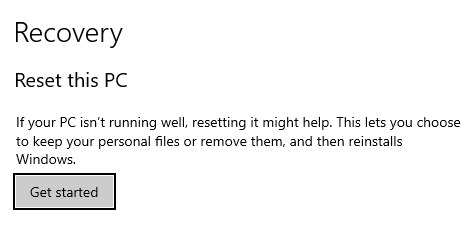
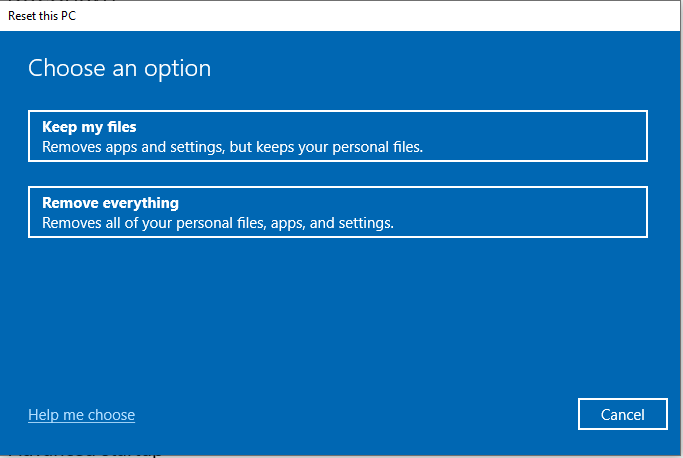
- Select either to keep your personal files or remove everything. In this tutorial, I selected the Remove everything option but the rest of steps is almost the same if you choose to Keep my files option.
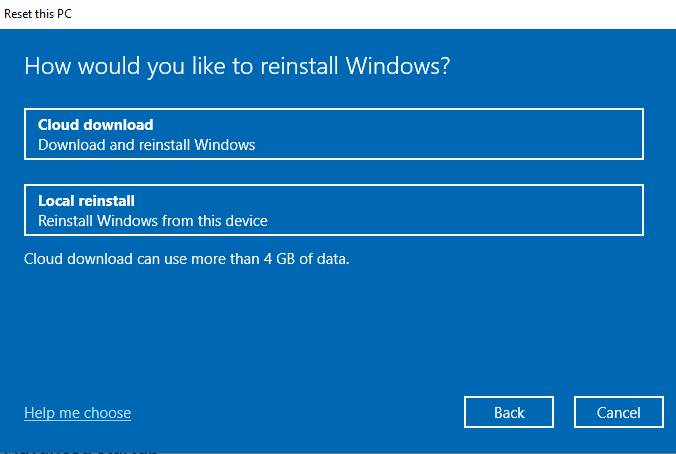
- Select Cloud download
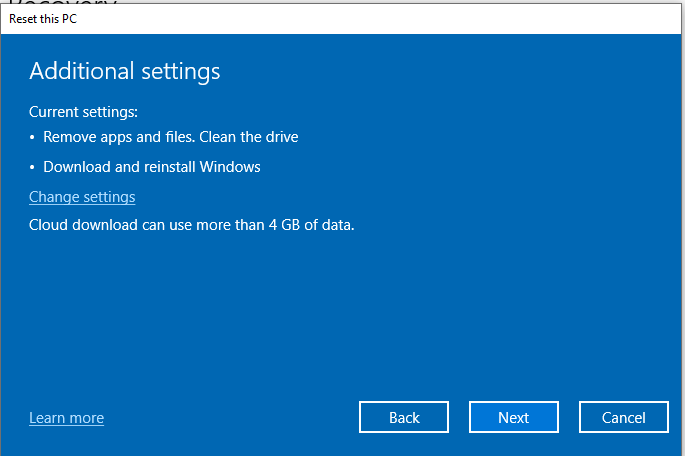
- The next window will confirm the settings you chose. Click Next.
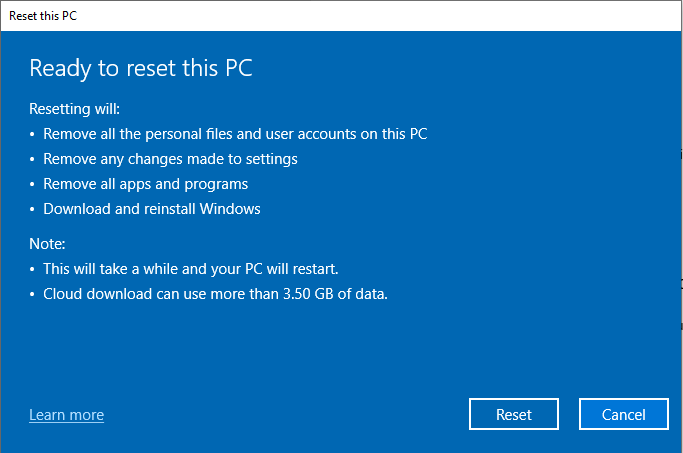
- Click Next in Ready to reset this PC to proceed. This will take a while and your PC will restart several times, so be patient.
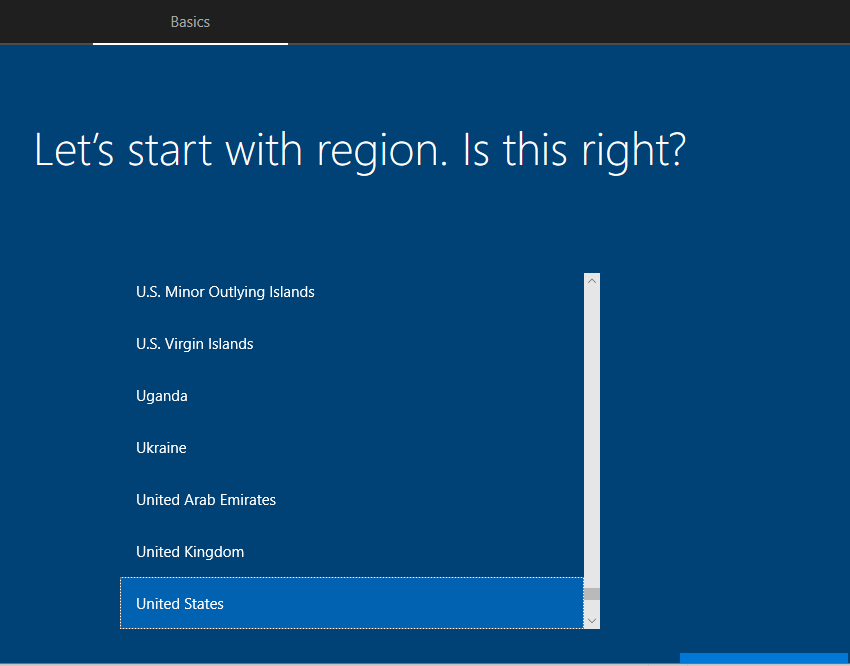
- Once installation is done, it will ask you several questions. It will start with select your region.
- Select your keyboard layout.

- If you need to add another keyboard, click the Add layout button, otherwise click Skip button.

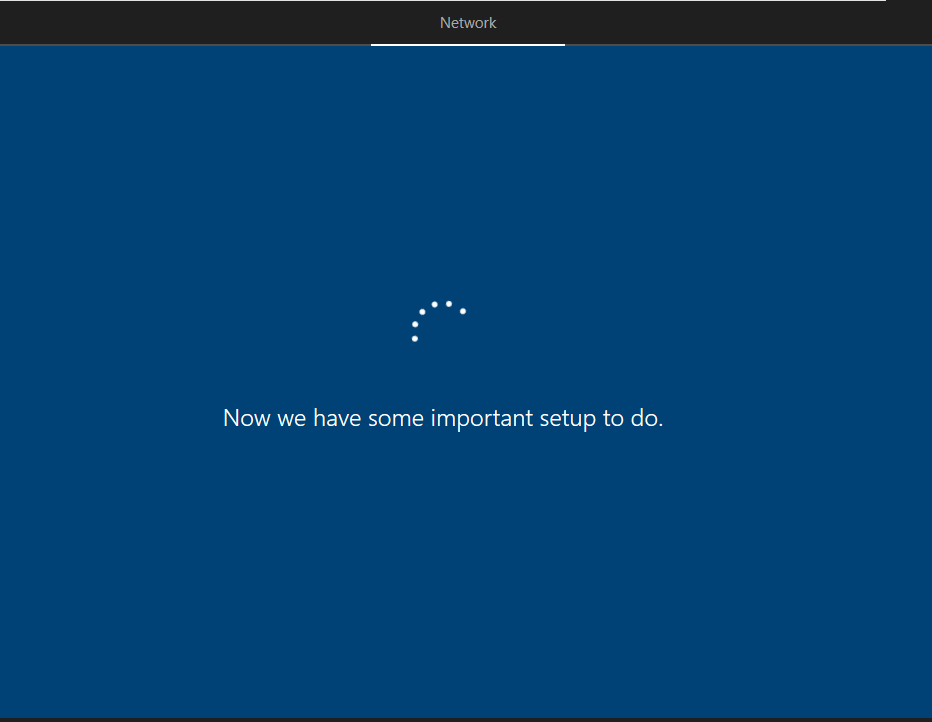
It will try to connect to your network. Enter your Wi-fi details when prompted.
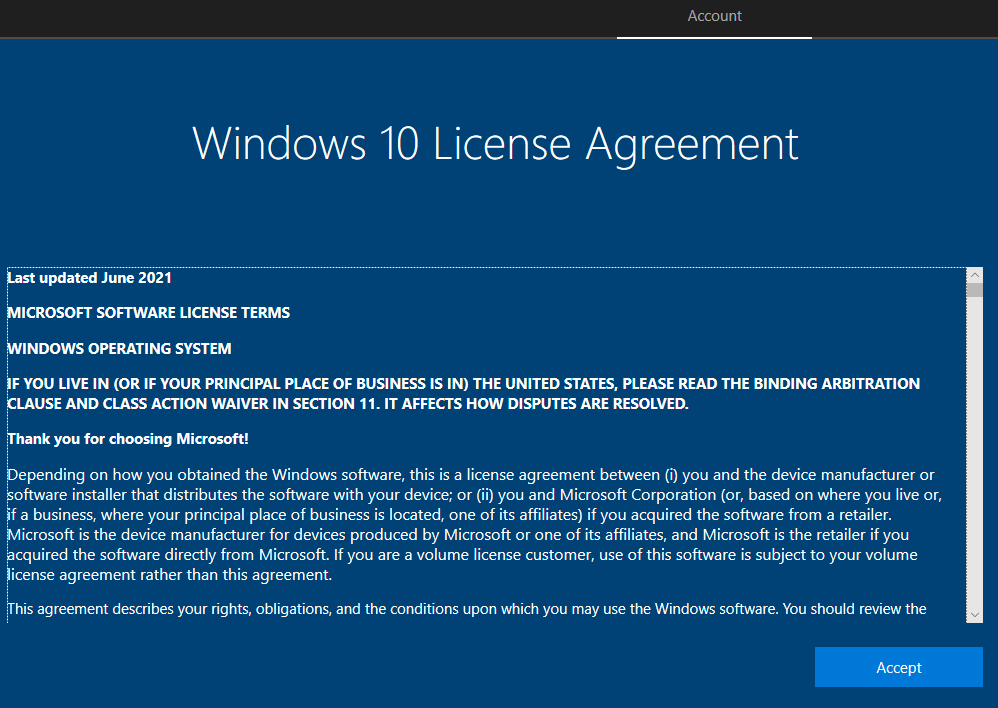
Accept the Windows 10 License Agreement to proceed.
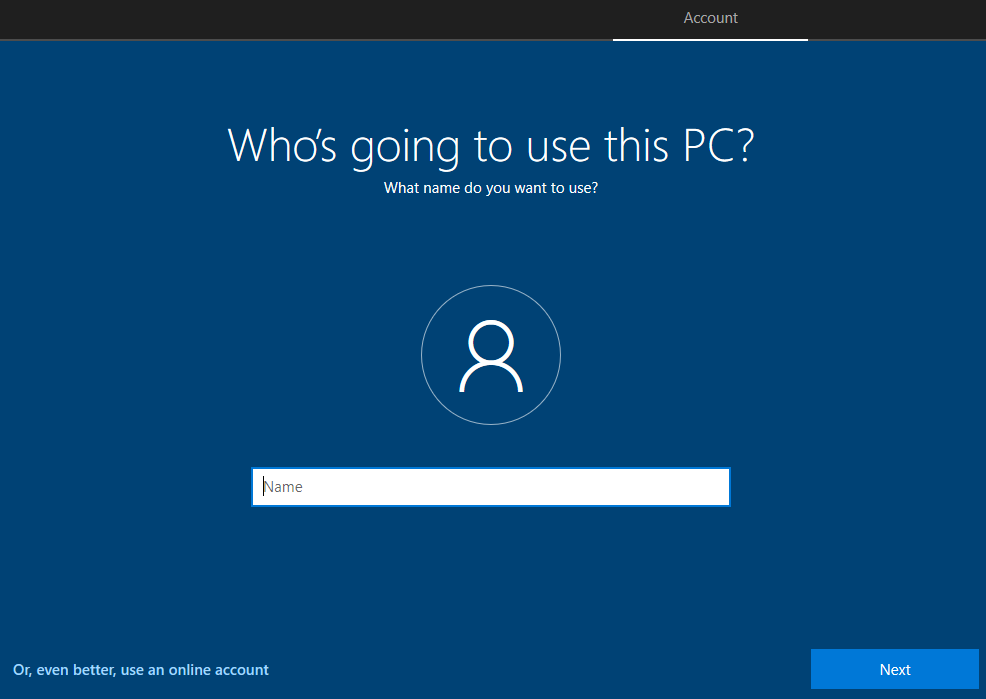
Enter a name you want to choose.
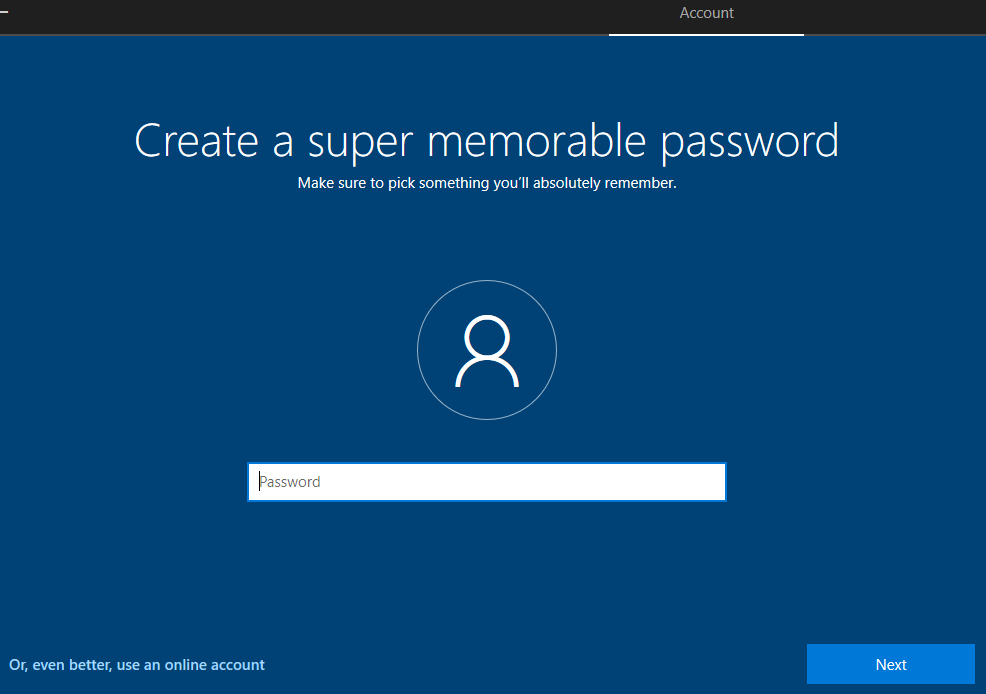
Create a super memorable password
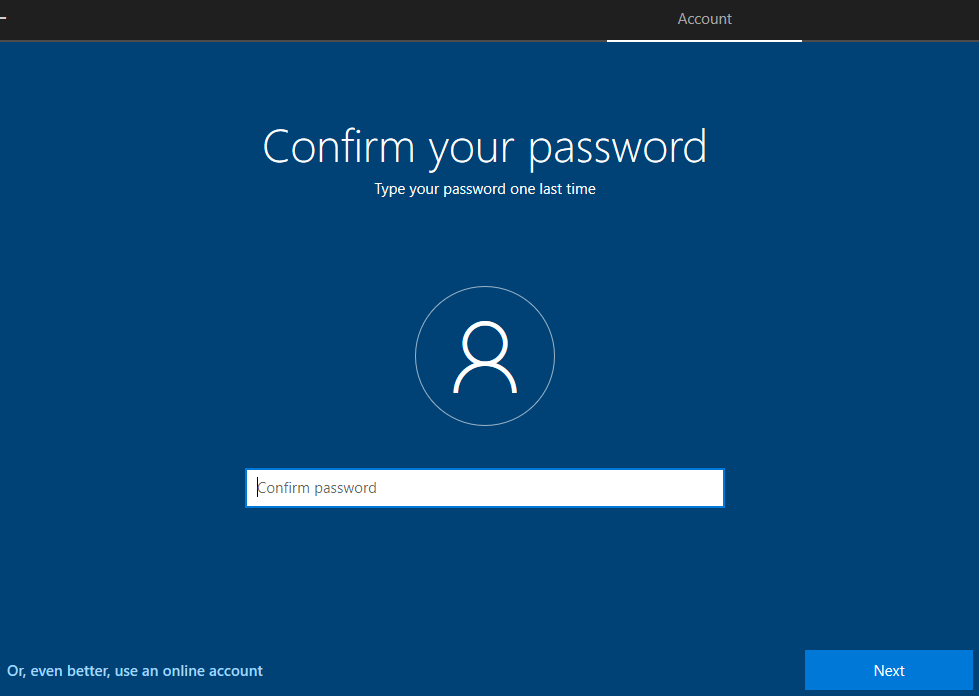
Confirm your password
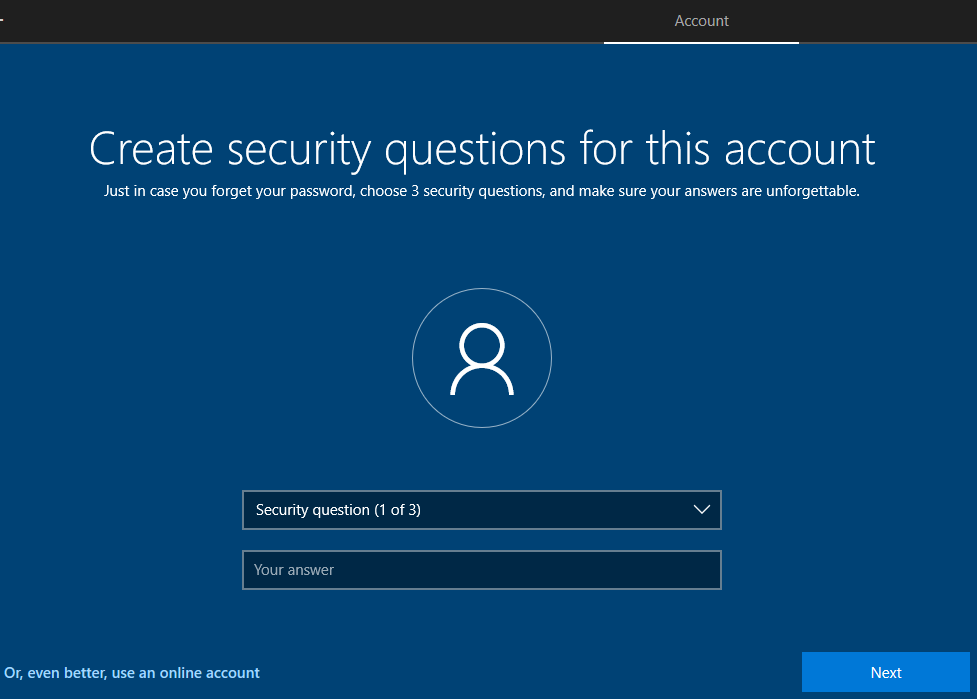
You need to create 3 security questions just in case you forget your password
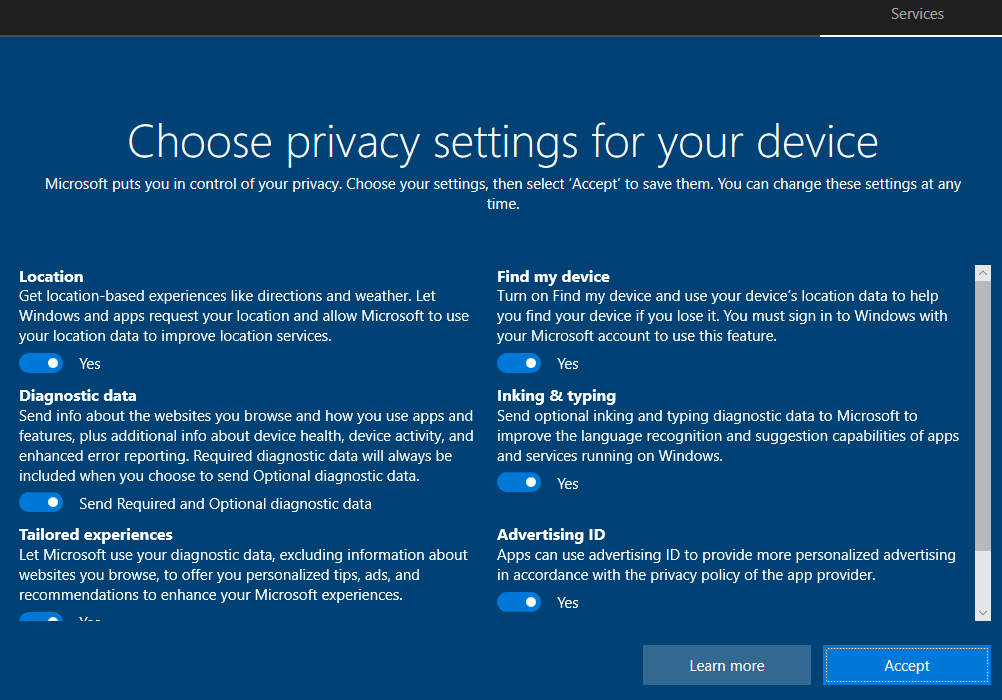
On the privacy settings for your device, you can either accept the default values or change according to your preference.
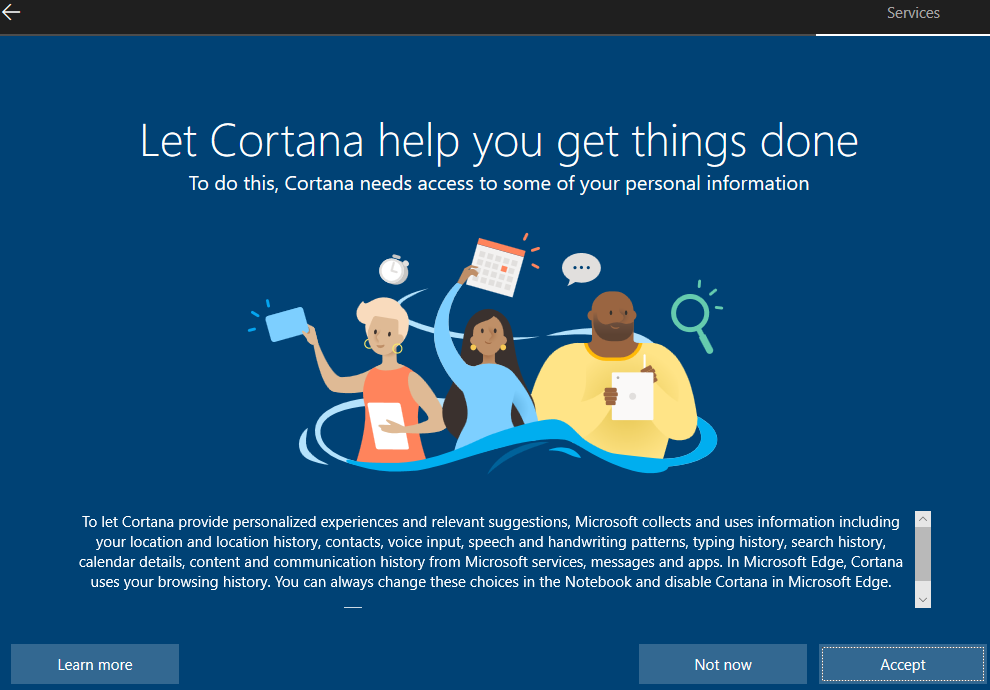
Lastly, choose if you want to enable Cortana or not.
Finally, you have completed the resetting of your Windows PC.
 Tech Simple Hacks